


 RSS Feed
SSIS package to process all dimensions in SSAS 2005 DB (continuing)
April 1st, 2007 by Vidas MatelisAfter I published blog entry about a SSIS package that processes dimensions, I received a suggestion from Darren Gosbell (his blog is here) that instead of building XMLA code by concatenating strings, I should use the CaptureXML option from an SSAS server object and then process dimensions using dim.Process method and execute XMLA using ExecuteCaptureLog routine.
I remembered that I tried to use dim.Process method when I originally wrote this package about a year ago, and I had performance related problems. So I re-tested this package by removing code that builds XMLA and instead just executing dim.Process method. This worked, but it took me 6 minutes to process 57 dimensions in my test database. A package that builds XMLA code and submits it to the SSAS server was able to do the same thing in 25 seconds. That is a big difference. I guessed that results are related to the fact that in my manually built XMLA code I added the <Parallel> tag to batch and that makes all dimensions to be processed, processed in parallel.
At first I thought that the option using CaptureXML property would produce the exact same results as the dim.Process method. But thanks to Darren Gosbell’s additional explanations, I setup my tests to see if CaptureXML makes any difference. I was quite surprised by the results. As I did not use CaptureXML method before, I was not sure what it does. I found that basically after you set CaptureXML property to True, statements to SSAS are not executed, they are just logged internally. You can later execute that log using ExecuteCaptureLog call. Most importantly ExecuteCaptureLog accepts 3 parameters that are very important:
Transactional (True/False)
Parallel (True/False)
pocessAffected (True/False)
In my tests I did not use third parameter, as it was irrelevant.
My results with different parameters are bellow. I added comments on what is different in XMLA code submitted (captured with profiler).
- Transactional = True, Parallel = True, Execution Time : 22 sec, Note: Executes Batch with parameter: <Batch xmlns=… <Parallel>
- Transactional = True, Parallel = False, Execution Time: 28 sec, Note: Executes Batch with parameter: <Batch xmlns=…
- Transactional = False, Parallel = False, Execution Time: 6 min, Note: Executes Batch with parameter: <Batch Transaction=”false” xmlns=…
- Transactional = False, Parallel = True, Error: Errors in the OLAP storage engine: Element Parallel is not supported in non-transactional batch.
As you can see the biggest impact to performance was the fact that multiple dimensions are processed in a single batch. Submitting each transaction in separate batch increased processing time 20 times.
So after learning all this I was able to simplify my package significantly. I will even look at rewriting my packages that does cube/measure group and partition re-processing.
Thanks to comments and example from Jesse Orosz (his blog), I added very simple error handling – I will fail package if ExecuteCaptureLog will produce error. For simplicity of this package, I did not introduce proper error logging.
Below are new steps to create an SSIS package that processes all dimensions (process full option) in a single database:
- Create a new package.
- In connection manager add a new Analysis Services connection, name the connection DM. If different name is used, adjust script below. Set this connection to point to your required server and SSAS database.
- To control flow area add new “Script” tasks. Rename it to “Process All Dimensions”
- Double click on this new task and go to Script screen and press on button “Design Script”.
In Project explorer select “References” and after right mouse click select “Add reference”. Choose Analysis Management Objects.
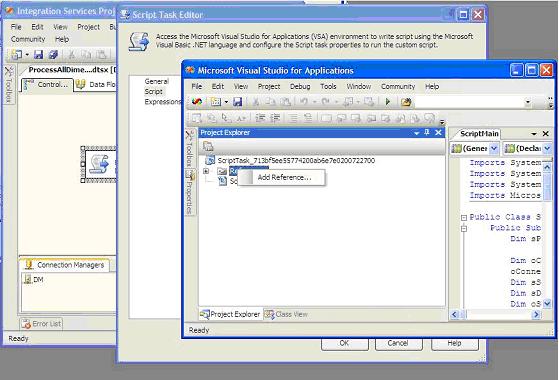
- Replace script with code from this link. Here is the same code, but my wordpress software replaces single and double quotes with special characters, so do not use text below:
Imports System
Imports System.Data
Imports System.Math
Imports Microsoft.SqlServer.Dts.RuntimePublic Class ScriptMain
Public Sub Main()
Dim ExecutionSuccessfull As Boolean = True ‘ If true, package executed without errors
Dim sProcessType As String = “ProcessFull”Dim oConnection As ConnectionManager
oConnection = Dts.Connections(“DM”)
Dim sServer As String = CStr(oConnection.Properties(“ServerName”).GetValue(oConnection))
Dim sDatabaseID As String = CStr(oConnection.Properties(“InitialCatalog”).GetValue(oConnection))
Dim oServer As New Microsoft.AnalysisServices.Server
oServer.Connect(sServer) ‘ connect to the server and start scanning down the object hierarchy
Dim oDB As Microsoft.AnalysisServices.Database = oServer.Databases.FindByName(sDatabaseID)If oDB Is Nothing Then
ExecutionSuccessfull = False
GoTo Done
Else
Dim oDim As Microsoft.AnalysisServices.DimensionoServer.CaptureXml() = True ‘ Start capturing XML.
For Each oDim In oDB.Dimensions
‘ This will generate XMLA, but because CaptureXML is True, will not execute it!
oDim.Process(Microsoft.AnalysisServices.ProcessType.ProcessFull)
Next
oServer.CaptureXml() = False ‘ Stop capturing XML
‘ Execute captured XML. First parameter Transactional, second parameter Parallel, third optional parameter: processAffected
‘ These are very important parameters!Dim oResults As Microsoft.AnalysisServices.XmlaResultCollection
Dim oResult As Microsoft.AnalysisServices.XmlaResultoResults = oServer.ExecuteCaptureLog(True, True)
Dim oMessage As Microsoft.AnalysisServices.XmlaMessage
‘Log the errors and warnings
For Each oResult In oResults
For Each oMessage In oResult.Messages
If oMessage.GetType.Name = “XmlaError” Then
‘The processing failed
ExecutionSuccessfull = False
Else
‘It’s just a warning.
ExecutionSuccessfull = True ‘ if you want to fail on warning, change this to False
End If
Next oMessage
Next oResultEnd If
Done:
oServer.Disconnect() ‘ disconnect from the server — we are doneIf ExecutionSuccessfull Then
Dts.TaskResult = Dts.Results.Success
Else
Dts.TaskResult = Dts.Results.Failure
End If
End SubEnd Class
- NOTE: My blog software replaces single quotes and double quotes with special characters. Please
- Close script editor
- Save Package with your preferred name
- Package will look similar to this:
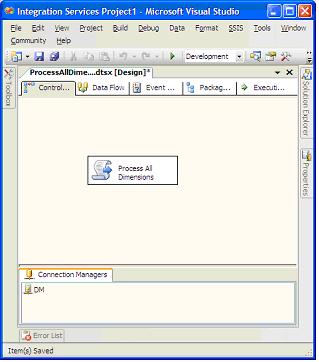
- You are ready to execute it
As you can see this script is much simpler than my original version.
For proper production version I will have to add proper error handling – save errors/warnings to dts log.
You can find forum where we talked about this package here.
Note: If in script editor you see blue underline for Microsoft.AnalysisServices definitions, then you have to copy Microsoft.AnalysisServices.dll to the .NET folder.
Default location from: C:\Program Files\Microsoft SQL Server\90\sdk\Assemblies\Microsoft.AnalysisServices.DLL
Default location to: C:\WINDOWS\Microsoft.NET\Framework\v2.0.?\
Vidas Matelis
June 5, 2007 Note: Added to script library http://www.ssas-info.com/analysis-services-scripts. Please note that in the script library there is a zip file with package code. Please use it if you have any problems.
November 8, 2008 Note: Created PowerShell script that does the same thing: http://www.ssas-info.com/analysis-services-scripts/1211-powershell-script-to-process-all-dimensions-in-one-analysis-services-database
Posted in SSAS, SSIS | 23 Comments »
April 10th, 2007 at 5:55 pm
Vidas,
This is a great post. Do you have one for processing cubes/partitions?
April 10th, 2007 at 9:25 pm
[…] SSIS package to process all dimensions in SSAS 2005 DB (continuing) […]
April 10th, 2007 at 9:30 pm
Dan,
I added new blog entry with code that process cubes/partitions.
http://www.ssas-info.com/VidasMatelisBlog/?p=11
Vidas Matelis
February 28th, 2008 at 2:26 pm
Hi Vidas,
It’s very useful. Infact we had Partition and Dimension refresh script as ActiveX, but post migration doesn’t seem to work in SSIS.
I have a problem in the code you had mentioned.
When I click on “Design Script” and then “References->AddReferences” from Project explorer, I don’t see “Analysis Management” objects. I do see Microsoft.SQLSERVER.ManagedDTS & Microsoft.SQLSERVER.Scripttask.
When I had a look on my assembly directrory (c:\Windows\assembly\), I do see the dll for Analysis services available. Because of non-availability of Analysis Mangement object I couldn’t even compile the code :-(
any ideas ?
Though I have a workaround to produce a XMLA(by application script), I’m more keen to handle in the way you suggested.
Plese advise.
Thanks
Brian
February 28th, 2008 at 2:33 pm
Brian,
Try to copy Microsoft.AnalysisServices.dll to the .NET folder.
Default location from: C:\Program Files\Microsoft SQL Server\90\sdk\Assemblies\Microsoft.AnalysisServices.DLL
Default location to: C:\WINDOWS\Microsoft.NET\Framework\v2.0.?\
Vidas
February 28th, 2008 at 2:58 pm
Hi Vidas,
Thanks for the swift response, I just figured it out going through you another blog and now code seems to be valid.
I did create a Analysis Services connection
from ‘Native OLE DB for Analysis Services9″ and named it as COB_NEW . But when I attempt to execute the Package, I get below error:
“The connection “COB_NEW” is not found. This error is thrown by Connections collection when the specific connection element is not found”
Infact, I tried creating a Analysis Services9 connection from .NET provider. I still get the same error message. My solution contains 1 SSAS project and 1 SSIS project.
For SSAS project, I have created the OLEDB connection for Oracle.
For SSIS project, I have created OLEDB connection as I explained before.
But somehow, compiler complains of unknown connection.
Ahhh.. Let me bang against desk some more, meanwhile I would really apprecitate if you throw some pointer.Not sure if you come across something like this before.
Brian
February 28th, 2008 at 3:10 pm
Vidas,
BTW, Forgot to mention, when I hardcoded the server, database/catalog details. it works.
Our cube is quite big and has nearly 60 partitions(one per month). Everyday we process the current month. so in the SQL server 2000, we had DSO code which takes the input of current day and process the partiton accordingly.
In your code, if I would like to pass an input, is it possible ?
Sorry, I’m pretty new to AMO/.Net, I can live with DSO, VB. Unfortunately, no longer works in SSIS as I wanted.
Many Thanks
February 28th, 2008 at 3:11 pm
I am not sure, but is it possible that connection name is case sensitive?
February 28th, 2008 at 3:21 pm
To pass parameter to package example is here:
http://www.ssas-info.com/VidasMatelisBlog/27_script-to-backup-analysis-services-2005-databases
If you are scheduling package from SQL Agent, it has interface for passing parameter.
SSIS Script tasks also accepts parameters.
Dim oParameterFromPackage As Variable = Dts.Variables(“Parameter”)
February 28th, 2008 at 3:26 pm
Thanks a ton Vidas, I shall play around with this.
February 28th, 2008 at 4:24 pm
Vidas,
Gave a litte try,apparently paramterisation doesn’t get passed.
Method 1
Code :-
Public Sub Main()
Dim ExecutionSuccessfull As Boolean = True
Dim sProcessType As String = “ProcessFull”
Dim sServer As String = CStr(Dts.Variables(“myvar”).Value)
……
….
Execution :-
dtexec /FILE “D:\REFRSH.dtsx” /Set \package.variables[myvar].value;SVR
where SVR is the value intended to be passed.
OUTPUT :-
Code: 0x80012017
Source: REFRSH
Description: The package path referenced an object that cannot be found: “\pa
ckage.variables[myvar].value”. This occurs when an attempt is made to resolve a
package path to an object that cannot be found.
End Warning
DTExec: Could not set \package.variables[myvar].value value to SVR.
Method 2 :
Dim sServer As Variable = Dts.Variables(“myvar”)
But resulting exactly the same error message.
February 28th, 2008 at 4:56 pm
Just to add , I’m running in 64 bit Win2003.
February 28th, 2008 at 7:36 pm
Brian,
There are 2 things you are passing:
1. Parameter into packages variable.
2. Packages variable into script task.
To pass package variable into script task:
In script task editor, script tab there are 2 properties: “ReadOnlyVariables” and “ReadWriteVariables”. Have you specified variables that you want to pass into script task?
Have you done that?
For 64bit Windows, just make sure that
on the script task you change parameter “PrecompileScriptIntoBinaryCode” to True.
February 29th, 2008 at 4:31 am
Hi Vidas,
Finally it worked, problem was I didn’t specify ReadOnly Variable, I overlooked it.
Thanks a lot.
Brian
October 10th, 2008 at 9:50 am
Hi Vidas,
This is a very good article for processing the dimensions.
I have been working with ssas since couple of months. until now,i have been using the Analysis Services Processing Task to process the cube. But, that is not working fine, because when i add new dimensions to the cube it is not picking the new dimensions.
I found this article and followed your steps and created a package with just the Process All Dimensions script task. Took the exact same code. But my package errored immediately with this error..
Error: The Script returned a failure result.
Is there any way to see what is happening when the error occurs?
I tried to debug using breakpoints and hitting the play button, but that did not start debugging action.
Any help would be very much helpful.
To add, i’m working with SSAS 2005.
Again, Thank you!
October 10th, 2008 at 10:04 am
Hi Vidas,
I apologize for the previous post. I figured there was a problem while connecting to the cube database in Connection manager. After fixing that, i had the package working fine.
Thanks!
October 31st, 2008 at 2:11 pm
Hi,
If i have added two more fields in my fact table so how to process this using the script task there is a work around for this
December 16th, 2008 at 5:29 am
Hi Vidas,
I’m facing the same problem as mentioned by Naveen on October 10, 2008.
I followed your steps and created a package with just the Process All Dimensions script task. Took the exact same code. But my package errored immediately with this error..
Error: The Script returned a failure result.
The error doesn’t mention anything more in detail.
I tried to debug using breakpoints and hitting the play button, but that did not start debugging action.
I am working with SSAS 2005. Please Help!
December 16th, 2008 at 8:36 am
Sajeev
When you copy script text, do you see squigly lines under some code that indicate problem? If so, did you copy SSAS dll as described at the end of the article?
Are you running script on 64bit server? If so did you change script option “PrecompileScriptIntoBinaryCode” to True?
Are there any errors in the windows log?
One more sugestion – after you copy code, please edit all single quotes and double quotes. My blogging software changes them, so you have to retype them.
Sajeev – you can also download this package from here.
December 17th, 2008 at 1:52 am
Hi Vidas,
1. No I do not get squigly lines after I copied the script.(I’ve added the reference to Microsoft.AnalysisServices.DLL. I’ve copied it to the location C:\WINDOWS\Microsoft.NET\Framework\v2.0.50727
2.Yes, I am running the script on 64 bit server and PrecompileScriptIntoBinaryCode is set to “True”.
3. I’ve downloaded your package and after making the necessary changes, tried to execute the package, but it gave me the same results.
4.I checked the Event Viewer-Application log and there are errors shown against the time the script was run.
It doesn’t make much sense to me. This is what it reads.”DB error: OLE DB or ODBC error: Operation canceled; HY008:
I’m not sure what is causing this problem.Please HELP
September 28th, 2010 at 7:24 am
/*Cube and Cube related Dimensions will process*/
For Each oCube In oDB.Cubes
Dim intLoopIndex As Integer
For intLoopIndex = 0 To oCube.Dimensions.Count – 1
‘System.Console.WriteLine(“Hello from Visual Basic”)
sDimID = oCube.Dimensions.Item(intLoopIndex).Name
If oCube.Dimensions.Item(intLoopIndex).Dimension.State = Microsoft.AnalysisServices.AnalysisState.Processed Then
sProcessType = “ProcessUpdate”
Else
sProcessType = “ProcessFull”
End If
sXMLA = “”
sXMLA = sXMLA + “” & vbCrLf
sXMLA = sXMLA + ” ” & vbCrLf
sXMLA = sXMLA + ” ” & vbCrLf
sXMLA = sXMLA + ” ” & vbCrLf
sXMLA = sXMLA + ” ” & sDatabaseID & “” & vbCrLf
sXMLA = sXMLA + ” ” & sDimID & “” & vbCrLf
sXMLA = sXMLA + ” ” & vbCrLf
sXMLA = sXMLA + ” ” & sProcessType & “” & vbCrLf
sXMLA = sXMLA + ” UseExisting” & vbCrLf
sXMLA = sXMLA + ” ” & vbCrLf
sXMLA = sXMLA + ” ” & vbCrLf
sXMLA = sXMLA + “” & vbCrLf
sXMLA = Replace(sXMLA, “^”, “”””)
SaveTextToFile(strVal & “. ” & sDimID & “:” & sProcessType & “Dimenstion Start Time:” & DateTime.Now.ToString() & vbCrLf, strErrorFilePath, “DIM” & sDimID & vbCrLf)
objServer.Execute(sXMLA)
SaveTextToFile(strVal & “. ” & sDimID & “:” & sProcessType & “Dimenstion End Time:” & DateTime.Now.ToString() & vbCrLf, strErrorFilePath, “DIM” & sDimID & vbCrLf)
strVal += 1
Next intLoopIndex
oCube.Process(Microsoft.AnalysisServices.ProcessType.ProcessUpdate)
Next
July 6th, 2011 at 5:32 am
Great article
July 6th, 2011 at 5:54 am
You just saved my life..this is just wat i was looking for